Productivity
File my invoices
Photograph a receipt and it's filed, named, and added to a spreadsheet you can total up.
Automations
Drag a few nodes into a row and your Mac runs them for you. Read the file, pull out what matters, put it where it belongs, tell you it's done. The watching and the thinking both happen here, on your machine.
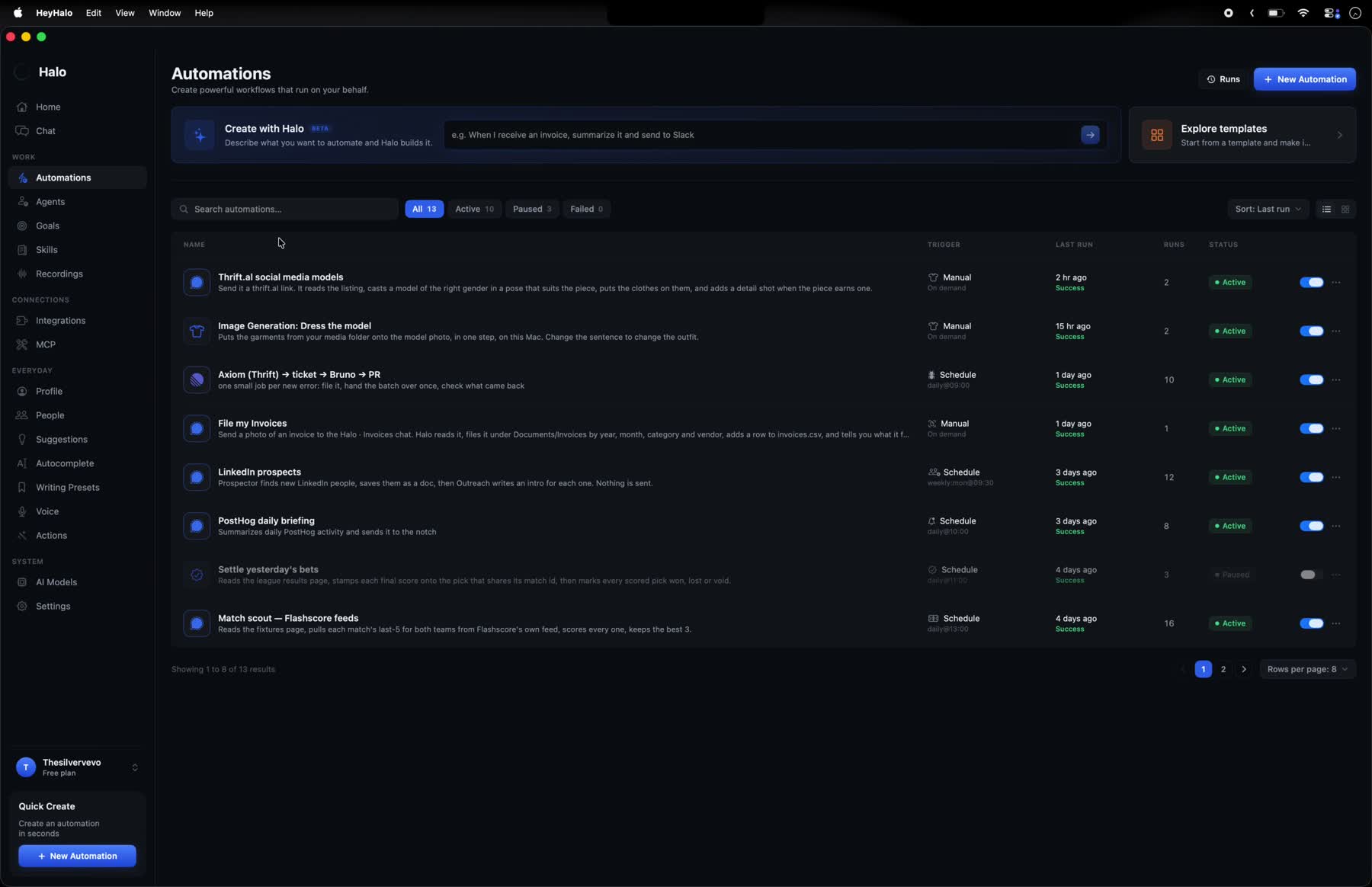
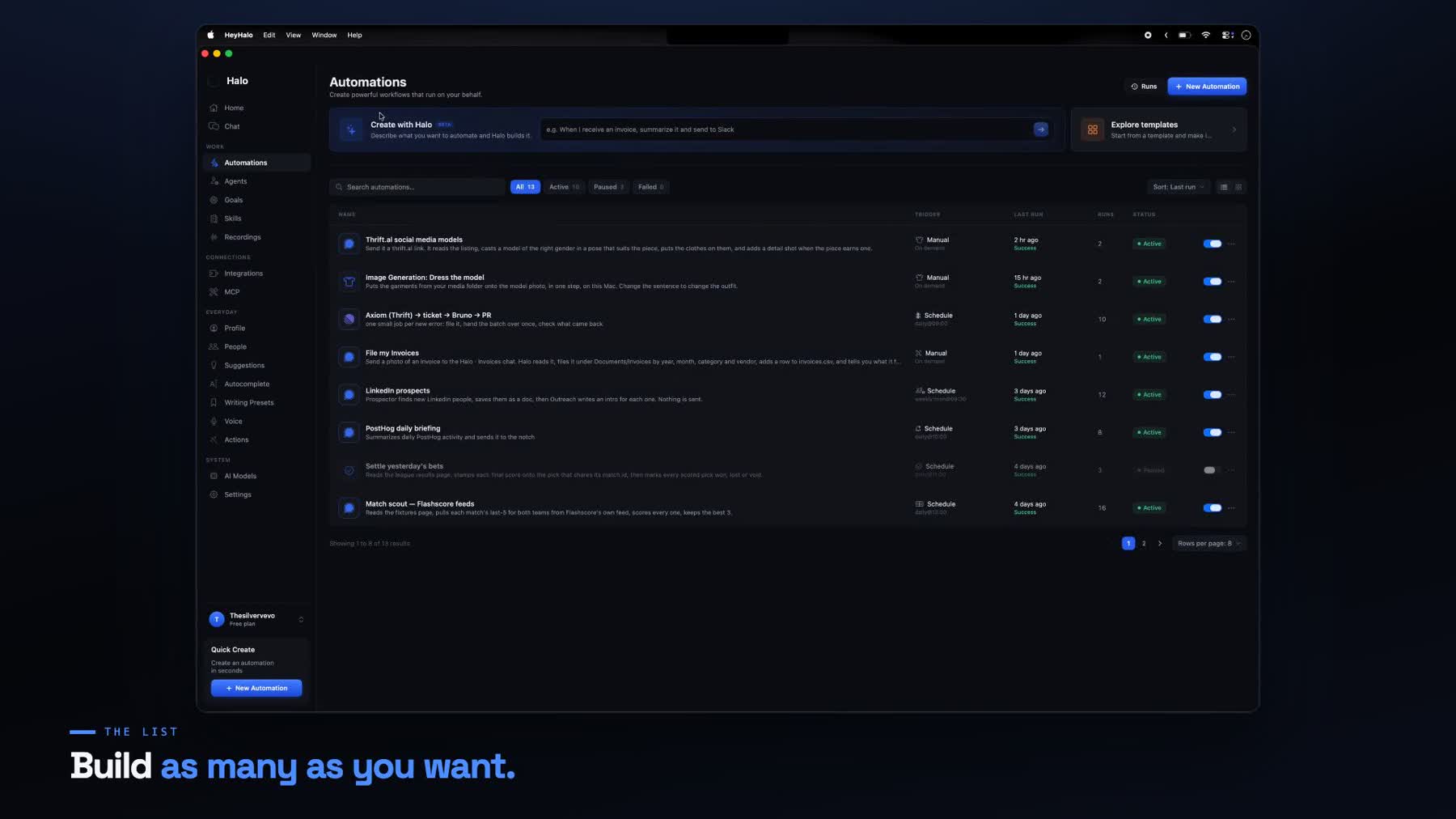
What it runs on, when it last ran, and whether it worked. Nothing happens invisibly.
See it in action
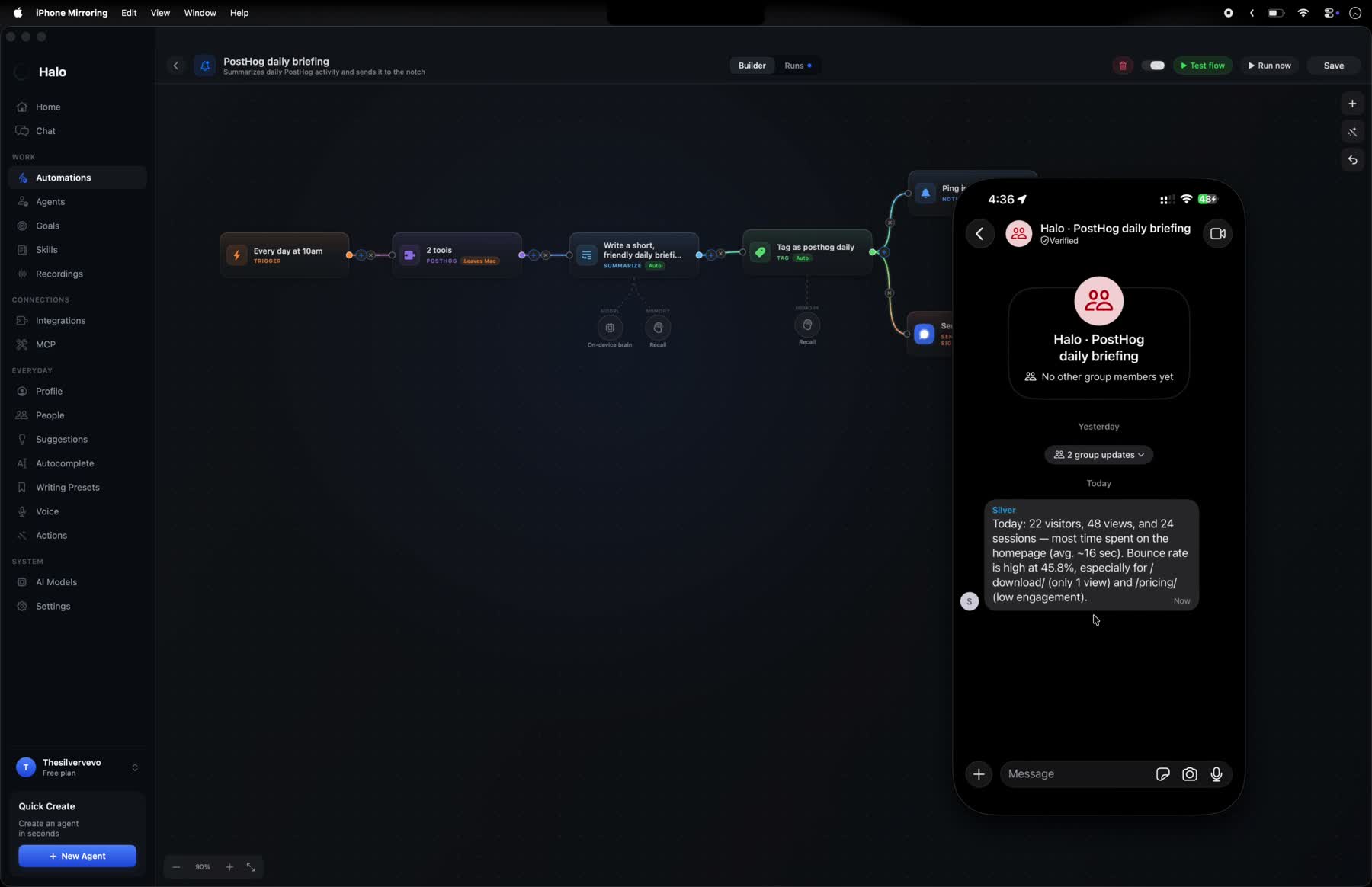
Built on the canvas, run live, and the result lands in the notch and on a phone. No mockups: this is the app, recorded on a Mac.
How it works
Say what you want in a sentence, open a template, or drop the first node on a blank canvas. All three land you in the same place.
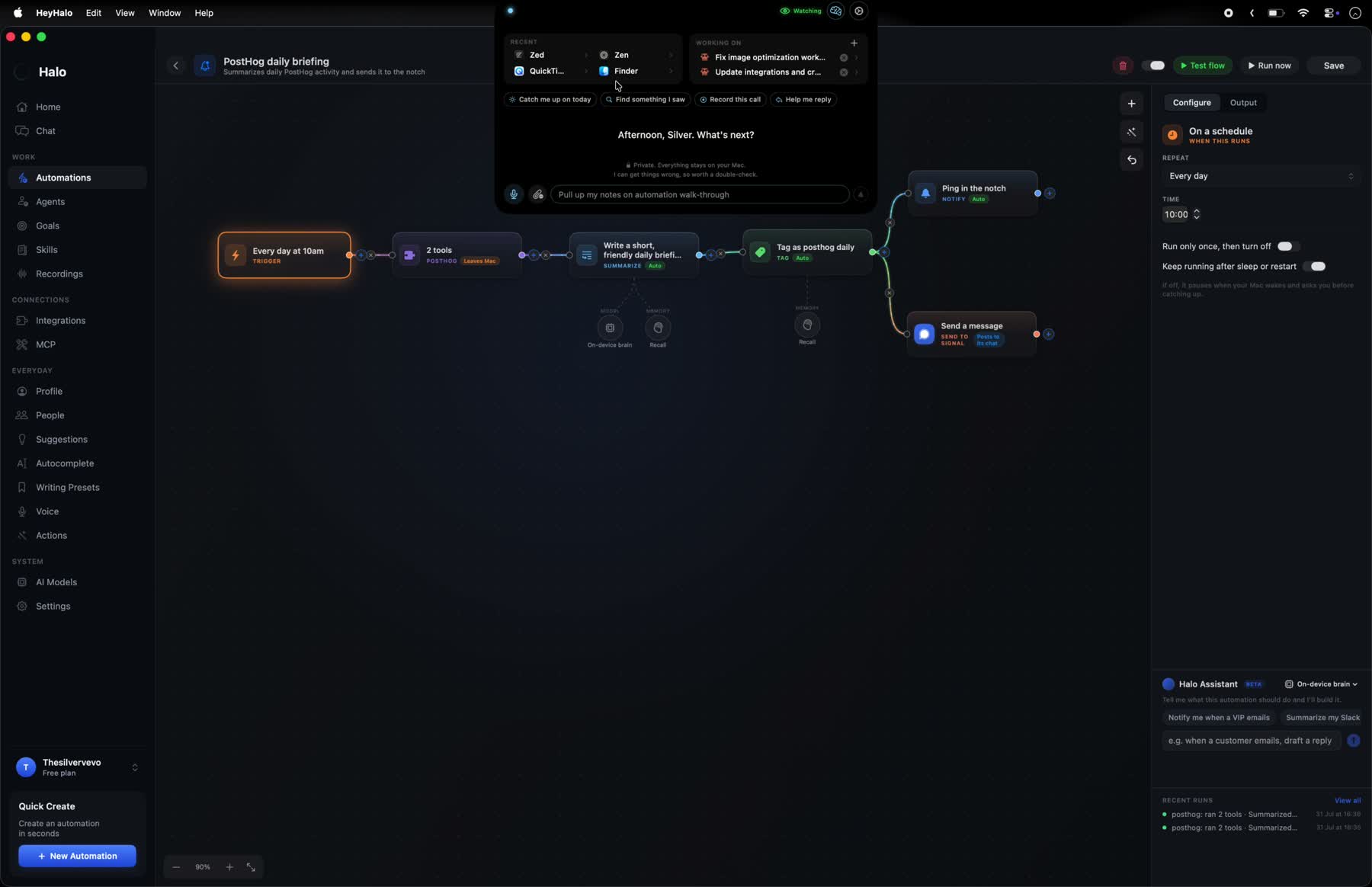
A new email, a message, an issue, a page that changed, a time of day, or you pressing Run. One flow can have several, all feeding the same steps.
Drag from one node to the next. Split the path in two when the answer matters. Every node does one job you can read off the card.
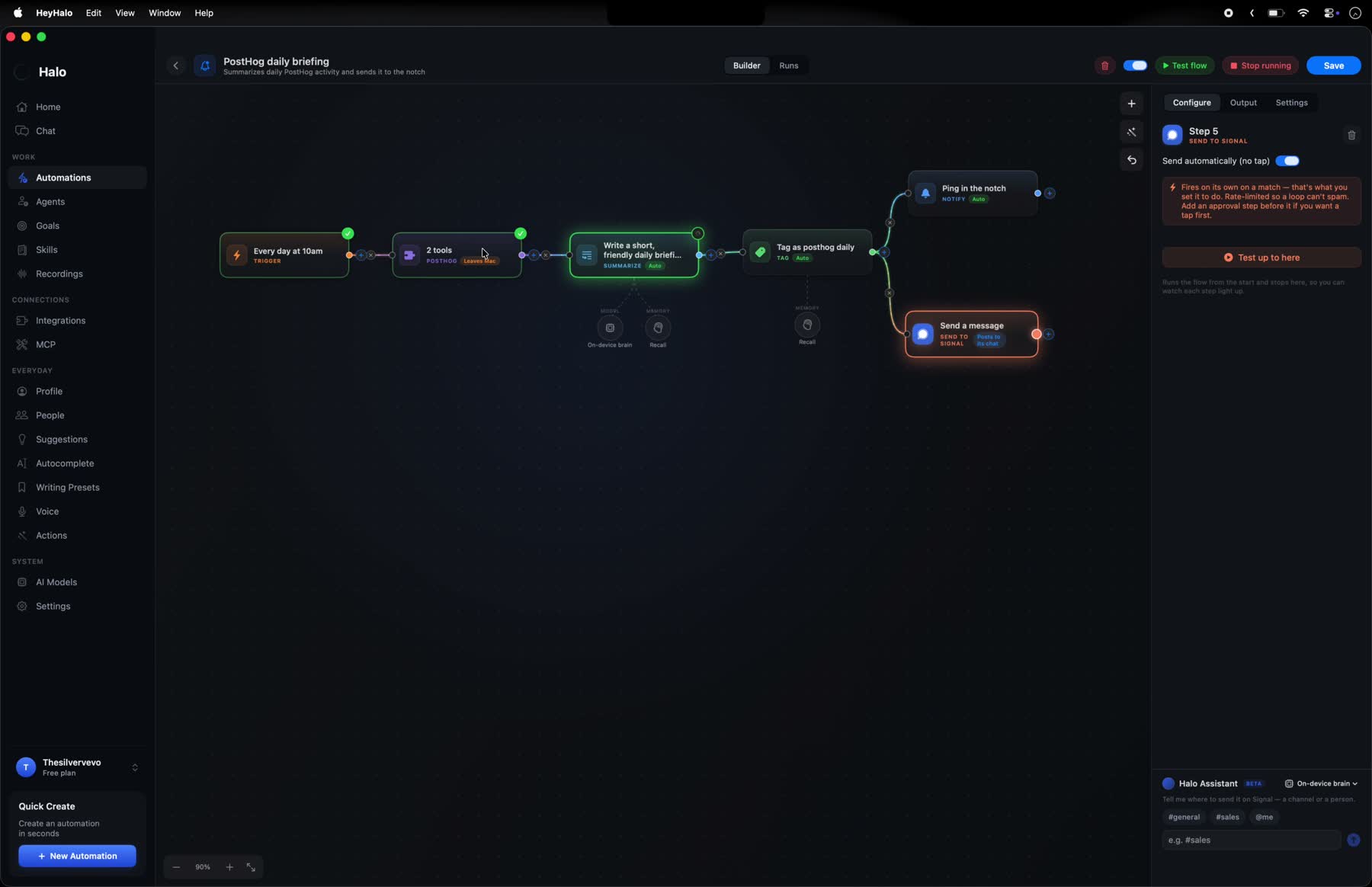
When it fires for real, the canvas lights up node by node, so you can see where it went and what each step actually produced.
The line that matters
There's no fine print to go hunting for. Each step wears a small badge on the canvas, and the badge is the rule. You can see the whole consent model of an automation by looking at it.
Reading, summarizing, filing, tagging, nudging you. Nothing here reaches anyone else or leaves your Mac, so it just happens.
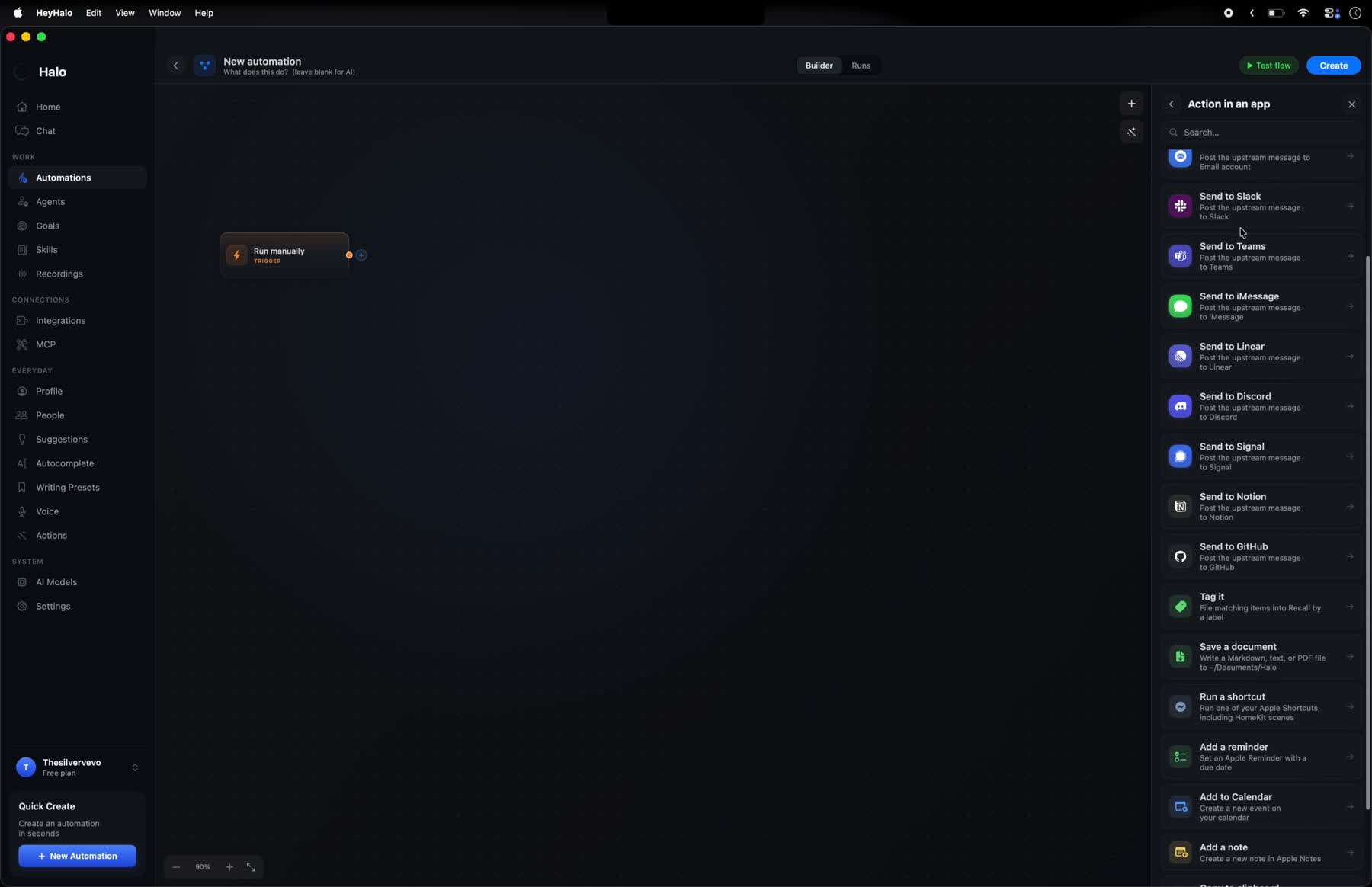
A reply, a message into Slack, an issue filed, a task handed to a coding agent. Halo writes it and holds it. You look, then you press send.
A request to an address you typed, or a tool on a server you connected. Marked on the card so you never have to guess which steps are local.
So, does it send things on its own? Only if you tell it to. Out of the box a message or a reply is prepared and waits for your tap. If you'd rather one particular automation just send it, you can say so when you make it, and that automation says so on its card from then on. A shell step is the same idea: the ordinary ones run, and anything reaching for your whole disk or the wider system stops and asks first.
What sets it off
A trigger is its own node, so a flow can have several. An invoice you photograph and an invoice that arrives by email can walk exactly the same steps, and neither one needs to know the other exists.
The screen trigger is the quiet unlock: if Halo can see it on your screen, it can watch for it, even in an app with nothing to connect.
The nodes
Each one does a single thing and hands the result to the next. Most of them never touch the internet, and the ones that do say so on the card.
Read the thing that arrived and make sense of it, on your Mac.
Split the path, keep only what matters, or stop early.
Plain, predictable reshaping with no model in the loop.
The things your Mac already does well, done for you.
A nudge, a draft in your voice, or a message into an app you connected.
Resize, crop, clean up, or make something new. The plain edits need no model at all.
Pause inside a run, or park it and pick it up later.
The escape hatches, for when a ready-made node isn't enough.
Per step, not per app
Every thinking step has its own small lane under it where you pick what runs it. Leave the whole flow on your Mac, or send just the one step that needs more muscle somewhere bigger.
On your Mac
The default for every step. Nothing leaves, and it keeps working with the wifi off.
Your own key
Bring an account you already pay for. The key lives in your Keychain and your Mac talks to them directly.
A Halo plan
For the heavier steps, without setting anything up. Off unless you choose it.
When a node isn't enough
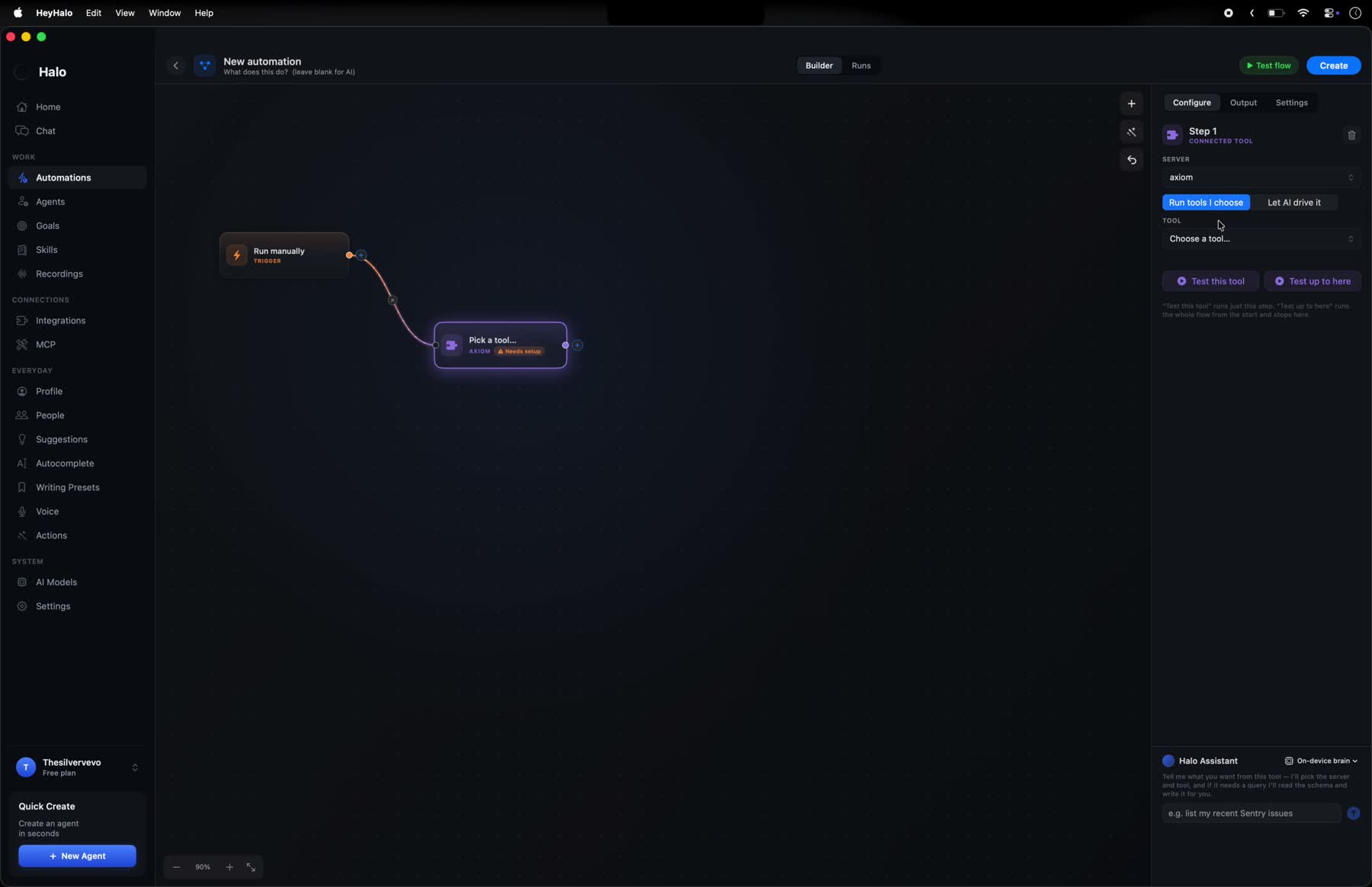
Connected tools
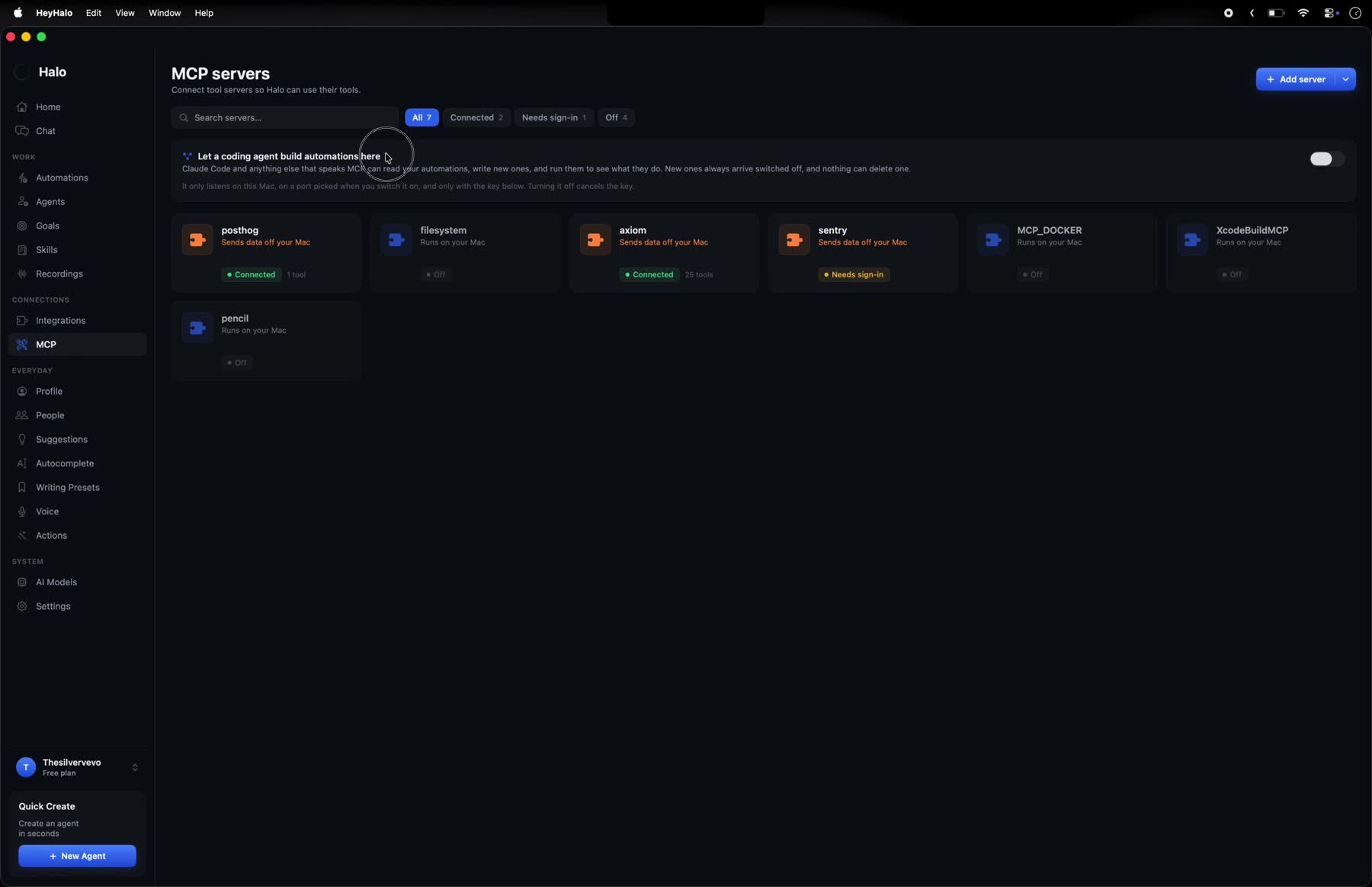
Point Halo at a server you run or trust and its tools become nodes you can drop in. Halo keeps no special code per service, so a tool that server adds tomorrow shows up on its own.
A request, or a few lines of code
Call any address that speaks HTTP, or write a short snippet to reshape whatever came through. For anything else there's a shell step.
Hand it to an agent
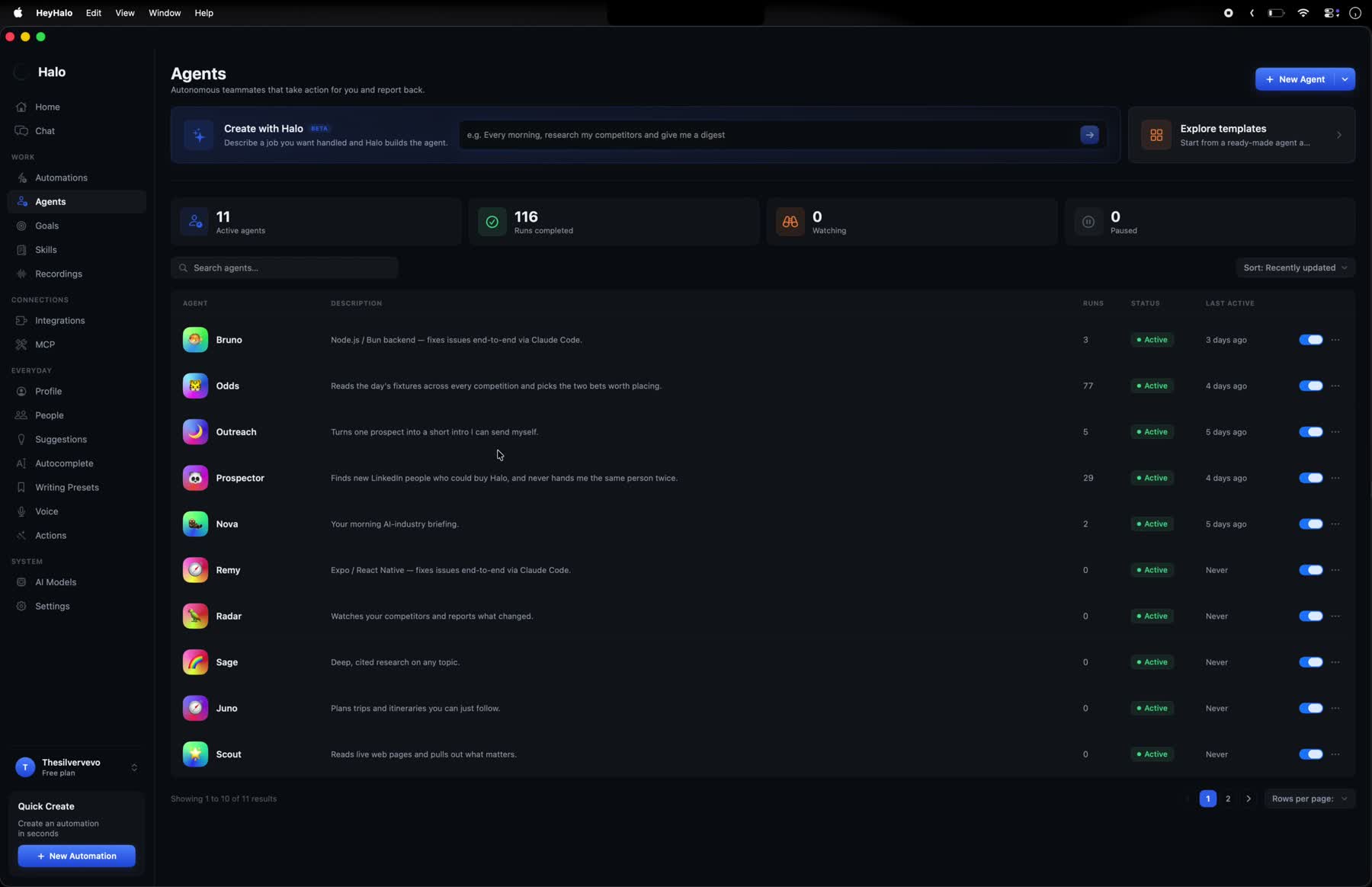
Pass the job to one of your standing agents, or stage it for a coding agent in your terminal. That last one always waits for your go-ahead.
Pictures and video
Point a flow at a folder and the nodes that handle files can read from it. Resize a batch, crop them, strip the background, put text on them, pull a frame out of a video, or read what a photo actually says. The plain edits use no model at all, so they're instant and they're free.
Then there are the three that make something new: make a picture from a description, describe a change across pictures you already have, or make a few seconds of video. Those need a brain behind them, which you pick per step like any other.
Files an automation makes are kept apart from your own and cleaned up on their own, and nothing outside the folder you picked can be opened, not even by an automation you imported.
Product shots, done on arrival
A receipt becomes a row
One clip, three sizes
Templates
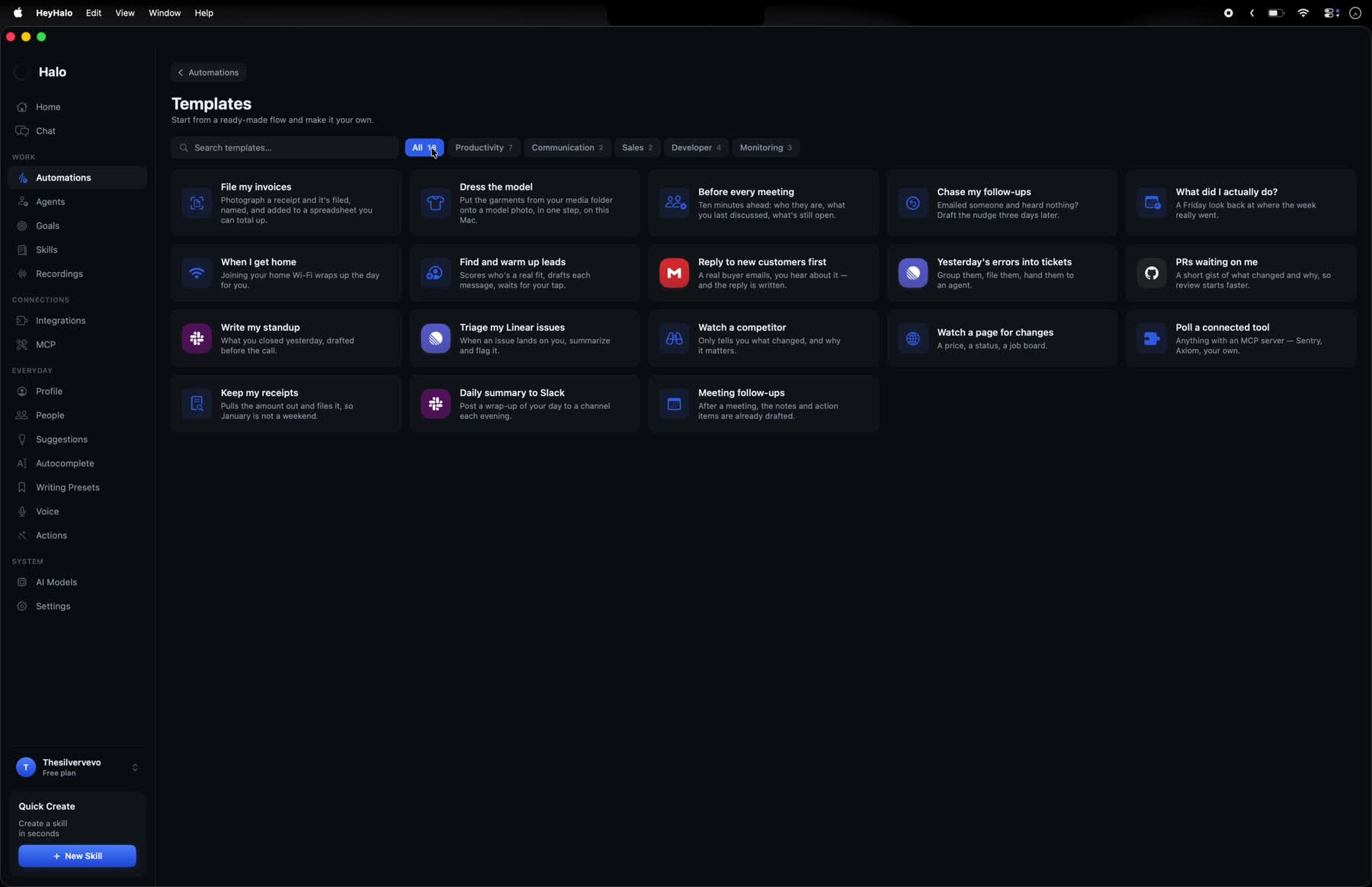
Open a template and it lands on the canvas fully wired, yours to change. Every one is a real job someone wanted doing, not a feature demo.
Photograph a receipt and it's filed, named, and added to a spreadsheet you can total up.
Ten minutes ahead: who they are, what you last discussed, what's still open.
Emailed someone and heard nothing? Draft the nudge three days later.
A short gist of what changed and why, so review starts faster.
Group them, file them, hand them to an agent.
Only tells you what changed, and why it matters.
What you closed yesterday, drafted before the call.
A Friday look back at where the week really went.
Anything with a connected server: your error tracker, your logs, your own.
Living with it
Press Run and the canvas lights up node by node as it goes. Each card shows what that step actually produced, so a flow that went sideways shows you exactly where.
Every automation has its own chat. Ask why it did that, ask it to run now, ask it to pause. It answers from its own steps and its own history, not from a guess.
Every automation keeps a log of what it found, so you can look back long after a nudge has scrolled away. Pause, edit, or delete any time.
Wire it once
The receipts that pile up, the follow-up you never send, the page you keep refreshing. Drop the nodes in a row, and your Mac takes it from there. On your machine, where you can see every step.
Privacy, in one line: Halo runs on-device by default. We set a single sign-in cookie, nothing else, and we never track, profile, or sell.