Automations
Build your first Mac automation: a canvas, a trigger, and three nodes
A walkthrough of building a workflow automation on your Mac: pick a trigger that fires on its own, add steps that read and think, and keep it from acting unapproved.
Most automation advice starts with the tool and works backwards to a problem. That is why so many people build one impressive workflow, admire it, and never build another.
Start from the other end. Think of something you did three times last week that you resented doing. Not the big process you have been meaning to fix. The small, dumb, repeated thing. That is your first automation, and it will take about ten minutes.
The shape of every automation
Whatever you build, it has the same three parts.
A trigger is the thing that notices. It fires without you. This is the part that separates an automation from a shortcut you press: nobody has to remember it exists.
Steps are what happens next. Read something, think about it, write it down, tell someone. They run in order, and each one can pass its result to the next.
An outcome is what you actually get. A note filed. A card on your screen. A draft waiting for you. Something in the world that is different from before.
Get those three right and the rest is detail.
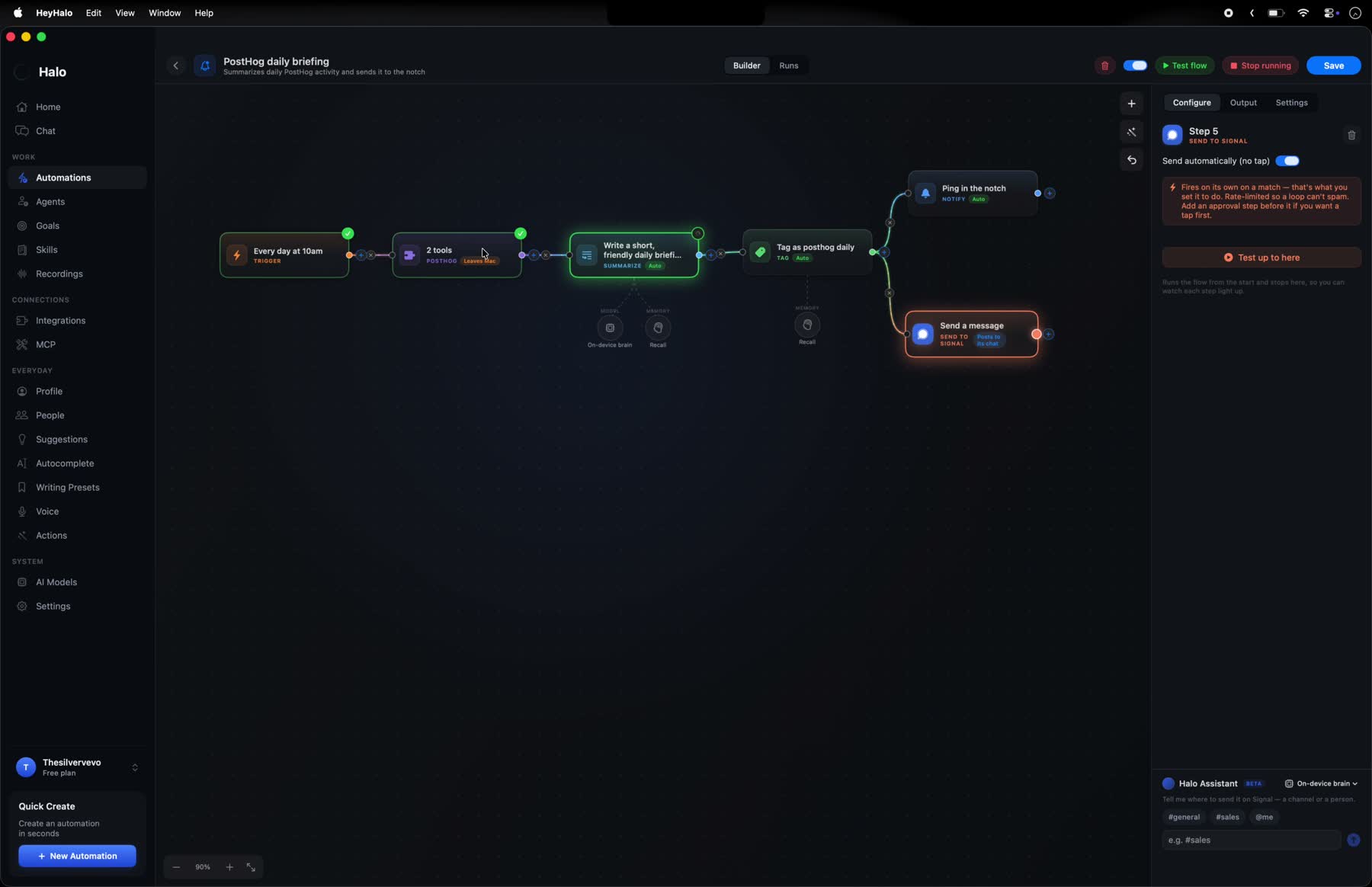
Every step carries its own badges. “Leaves Mac” means that step talks to something outside your machine, and the small chips underneath show which brain and which memory the step is using. You can see the whole trust story of a workflow at a glance, which matters more once you have a few running.
Step one: pick a trigger that fires on its own
This is where most first automations go wrong. People pick a manual trigger, a button they press, and then discover they never press it.
Good triggers happen whether you are paying attention or not:
- A schedule. Every weekday at 8am. Every Friday at 5pm. The simplest one that works, and underrated.
- A new email matching a filter. From a specific sender, with a certain subject, carrying an attachment.
- A calendar event coming up. Fifteen minutes before anything with more than three people on it.
- A file landing in a folder. Drop a receipt in, get a row out.
- An event in an app you use. A new issue assigned to you, a pull request review requested, someone mentioning your name.
- A message arriving. Send something to a specific chat and the automation picks it up.
Pick the one that matches when you actually want the work done, not when it would be convenient to remember.
A note on schedules: be less frequent than you think. Something checking every five minutes will find nothing 99% of the time and become noise you learn to ignore. Once a day at a moment you are already paying attention beats constant vigilance.
Step two: add steps that read, then think
The most useful pattern in almost every automation is two steps in a row.
Read something. Fetch a page. Open the file that triggered it. Pull the last ten messages from a thread. Get the calendar entry. This step gathers raw material.
Ask the AI about it. Not “summarise this”, which gets you a shorter blob of the same thing. Ask a specific question whose answer you would act on.
The difference is stark. Compare:
Summarise this email.
with:
Does this email need a reply from me before Friday? If yes, say what it is asking for in one line and draft a two-sentence response. If no, say “no action”.
The second one produces something you can use without reading the original. The first produces homework.
This is the single biggest lever on automation quality, and it is entirely in how you write the instruction. Be specific about the output shape. Say what to do when the answer is “nothing”. Give it permission to say nothing is happening, or it will invent something to justify its existence.
Step three: decide where the result goes
You have an answer. Now put it somewhere you will actually encounter it.
- A card on screen for things you should see now.
- A note or a file for things you want to find later.
- A running list for things that accumulate, one line per run, so you can see the pattern over weeks.
- A message to your phone for things that matter when you are away from the Mac.
- A prepared draft for things that need to be sent, but by you.
That last one deserves a paragraph.
The line you should not let an automation cross
An automation that sends email on your behalf is not a time saver. It is a liability with a schedule.
The failure mode is not that it goes rogue. It is that it is subtly, confidently wrong at 3am, to your biggest client, in your name, and you find out on Monday. The work it saved you was thirty seconds of pressing send. The work it created was a week of repair.
So the rule worth holding, and the rule Halo enforces rather than suggests: automations prepare, you approve. It can research the person, draft the reply in your voice, pull the right attachment, and put the whole thing in front of you ready to go. It stops at send. Same for deleting, posting publicly, and anything involving money.
You keep the thirty seconds of judgment. You lose the twenty minutes of assembly. That is the correct trade, and it is the one that lets you leave an automation running for months without checking on it.
A first automation worth building
Here is a concrete one that takes ten minutes and earns its place immediately.
The Friday loose ends check.
- Trigger: a schedule, Fridays at 4pm.
- Step 1: read this week’s messages and email.
- Step 2: ask, “Who asked me something this week that I never answered? List each one as a name, what they asked, and how many days it has been sitting. If everything has been answered, say ‘all clear’.”
- Step 3: put the result on screen as a card.
That is three nodes. It runs itself, it catches the thing that genuinely costs you relationships, and it is honest enough to tell you when there is nothing to do.
Once that one is running, the second is easy, because you have stopped thinking about automation as a project and started noticing candidates during the week.
When it does not work the first time
It usually does not, and the fix is almost always the same place.
Nothing fires. The trigger is narrower than you think. Loosen the filter and check it catches anything at all, then tighten it back up.
It fires constantly. Too broad, or the schedule is too tight. Add a condition, or move from hourly to daily.
The output is vague. Your instruction was vague. Ask for a specific shape: a list, a yes or no, three bullets, a name and a date. Vague in, vague out, every time.
It invents things. Give it the escape hatch explicitly. “If there is nothing, say nothing.” A model with no way to report an empty result will manufacture a non-empty one.
You can run any automation manually while you are building it, watch each step light up as it executes, and see what each one actually produced. That is how you debug it: not by guessing, but by looking at the intermediate output and finding the step where it went sideways.
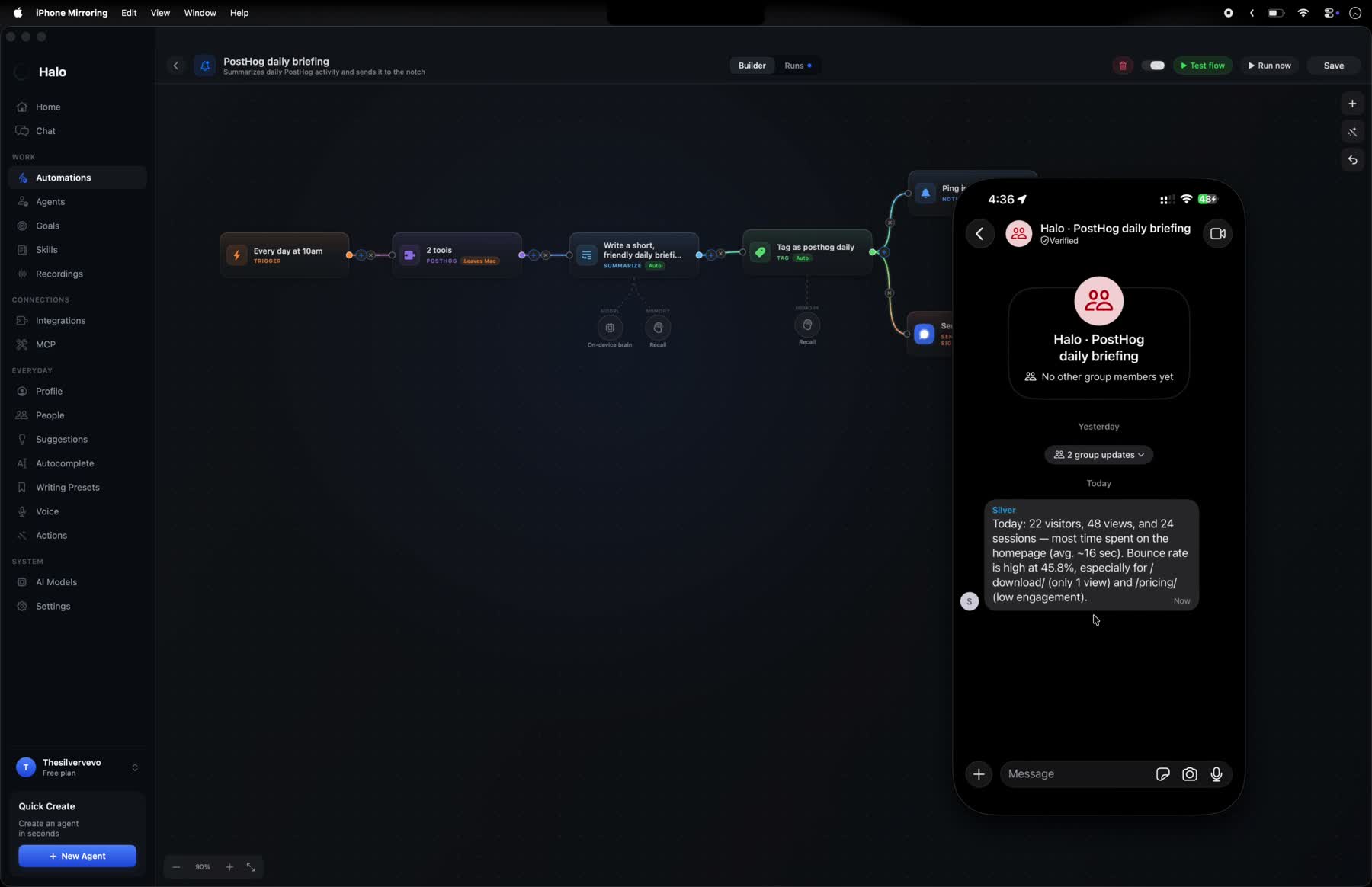
The run view is also where you confirm the outcome actually lands where you wanted it. A step that succeeds and delivers nowhere useful is the most common way an automation quietly stops earning its place.
Where to go next
Once the shape is familiar, the interesting automations are the ones that chain a few of these together: read a page, extract structured fields, check them against something you already know, and only speak up when the answer is surprising.
Two worked examples in that direction: turning a LinkedIn profile into notes before a call, and a weekend project using a local model to predict football matches, which is mostly an excuse to learn the HTTP and structured-output nodes.
See how automations work, or download Halo and build the Friday one.
- automations
- mac automation
- workflow automation
- no-code
- productivity